Random Picks#1
Devil's Gate
4.0#1
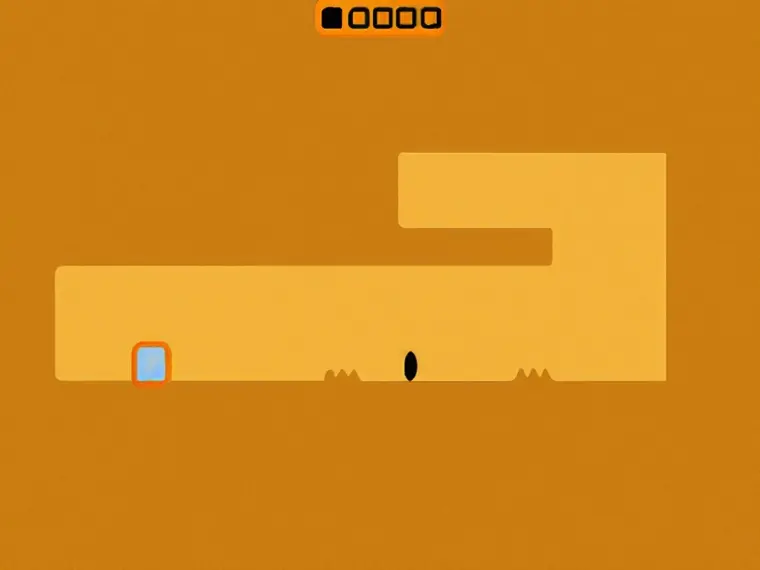
Devil's Gate is a platformer game where players guess trap locations on maps to avoid death, testing rationality and reflexes with each critical step.
4.0Platformer
Play Now FreeSubway Horror: Chapter 1 is a first-person horror adventure game that reimagines Subway Surfers into a spooky narrative experience. Set in a eerie subway environment, players take on the role of an explorer delving into a location filled with unknown terrors. The story revolves around a mysterious inspector, and players must gather clues and solve puzzles to gradually uncover the secrets behind the events. The game combines exploration, puzzle-solving, and survival elements to create a tense and immersive atmosphere. As the first chapter in a series, it introduces core plotlines and gameplay mechanics, setting the stage for future installments. Utilizing 3D graphics and WebGL technology, it offers a visually engaging experience suitable for fans of horror and puzzle genres.
In Subway Horror: Chapter 1, players explore a subway setting from a first-person perspective, with core gameplay focused on exploration, puzzle-solving, and interaction. Players need to thoroughly search the environment for hidden clues and items, which may appear as notes, symbols, or environmental details. Puzzle-solving involves logical reasoning and environmental interactions, such as operating switches, combining objects, or deciphering codes to progress the story. The game emphasizes atmosphere, requiring players to stay alert amidst darkness and eerie sounds to avoid potential dangers. As players advance, they unlock new areas and interact with characters, ultimately revealing the truth behind the inspector's events. The gameplay pace is slower, prioritizing immersion and narrative-driven elements.
Move: WASD keys or arrow keys; Look around/Rotate view: Mouse; Interact/Spray: Left mouse button; Jump: Spacebar; Restart: R key; Open settings: Tab key; Fullscreen: Page fullscreen button.
Devil's Gate is a platformer game where players guess trap locations on maps to avoid death, testing rationality and reflexes with each critical step.

An online maze generator that lets you draw routes, adjust difficulty, and share challenge links with friends.

Quickly judge math equations before the timer runs out, solo or two-player duel to sharpen mental math speed.